Reporting - Aged Receivables
Managing cash flow is critical for any trucking business. UTX Freight provides two distinct Aged Receivables (AR) reports to help you track outstanding payments from different perspectives: Business Performance and Accounting Compliance.
1. Performance AR Report (Operational)
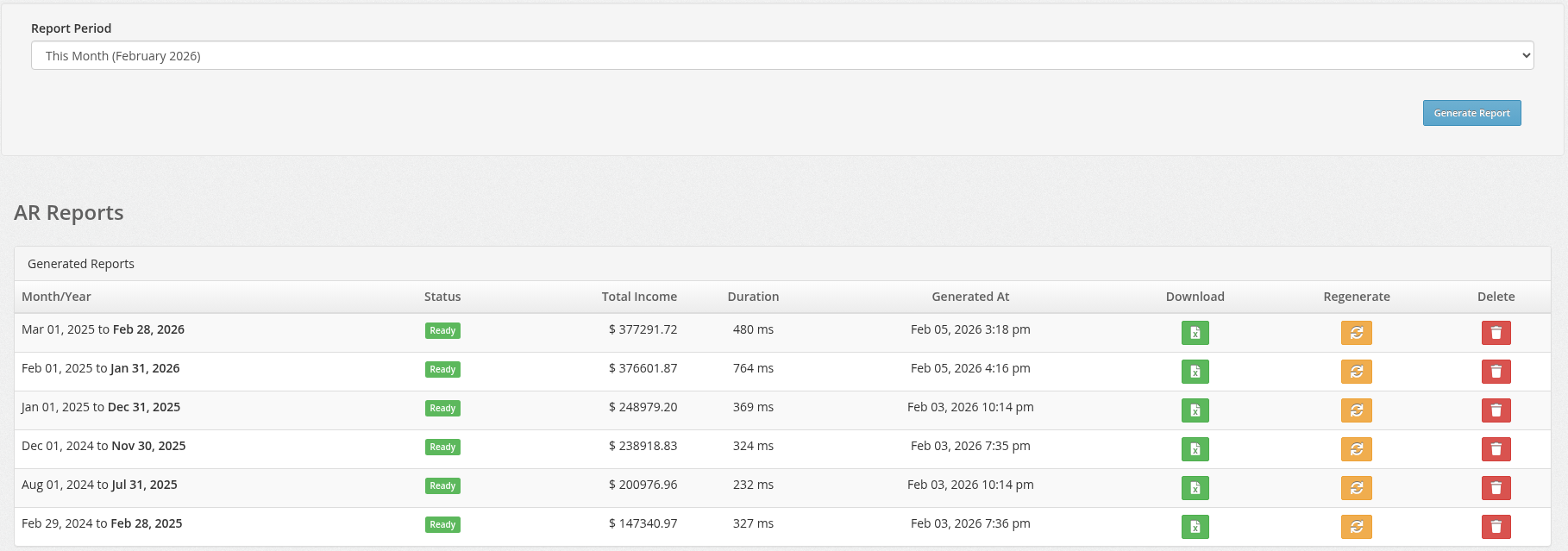
This report is designed for Business Health. It focuses on the last 12 months of activity to give you a complete picture of your recent sales alongside your outstanding collections.
- Scope: 12-month period ending on the selected date.
- Key Feature: Calculates Total Income (Sales) for the period.
- Best For: Owners and Managers wanting to see "How much did we make?" and "Who owes us money from recent work?"
Key Columns
- All Income: Total value of invoices generated in the 12-month period (paid and unpaid).
- AR Buckets: Outstanding balance categorized by age (30, 60, 90+ days).
2. Standard Aged Receivables (GAAP)
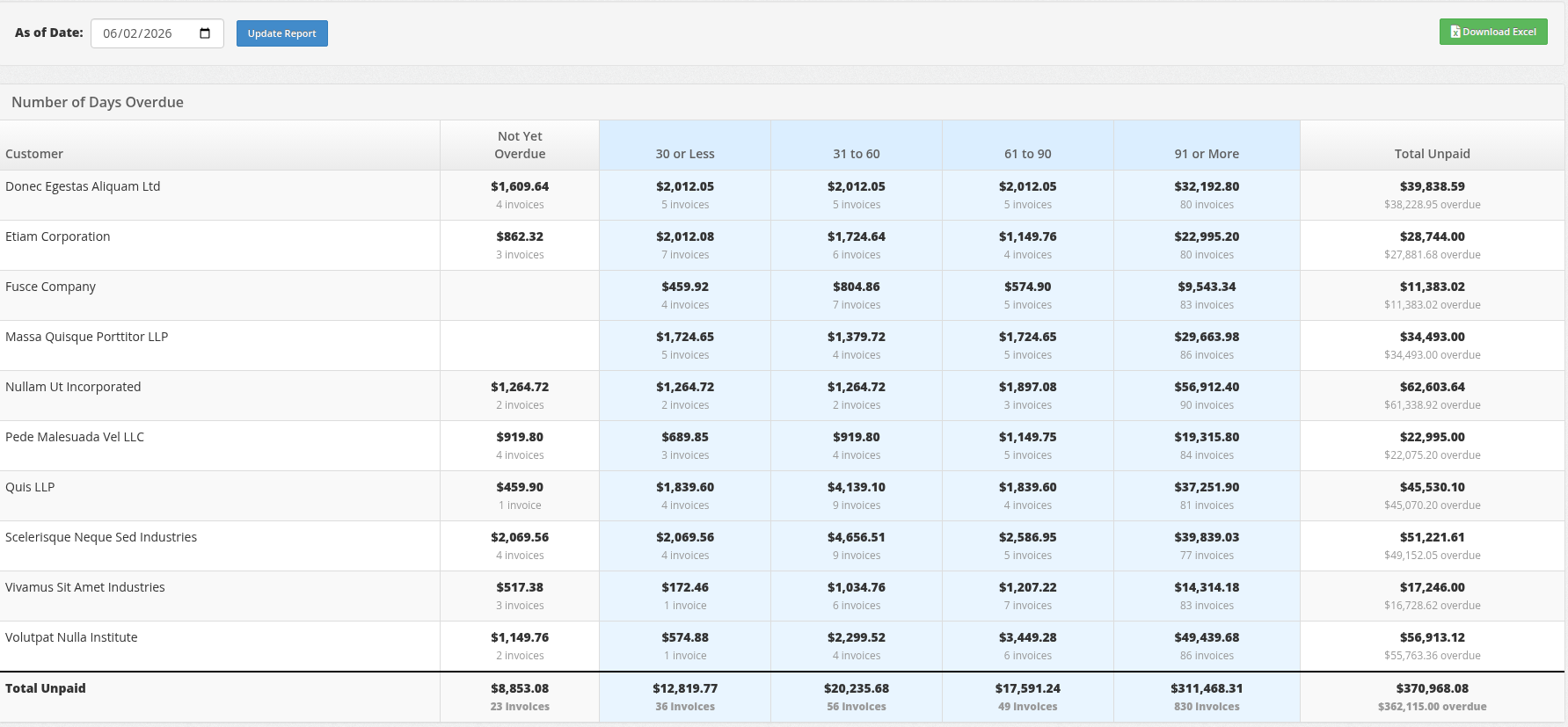
This report is designed for Accounting & Audits. It is a strict, GAAP-compliant snapshot of your Accounts Receivable ledger as of a specific date.
- Scope: Historical snapshot (includes all unpaid debts from any time).
- Key Feature: Strict aging based on Due Dates.
- Best For: Accountants, Bookkeepers, and Year-End Audits.
How it Works
- Due Date Priority: Aging is calculated based on the invoice
Due Date. If an invoice has Net 30 terms, it is not considered "Overdue" until day 31. - Historical Accuracy: It ignores any invoices or payments created after the selected date, ensuring the numbers match your historical books exactly.
Comparison: Which Report Should I Use?
| Feature | Performance Report | Standard AR Report |
|---|---|---|
| Primary Goal | Operational Health & Sales | Financial Compliance |
| Time Period | Last 12 Months | Snapshot (All Time) |
| Includes Income? | Yes (Total Sales) | No (Unpaid Only) |
| Aging Based On | Invoice Age | Due Date (Strict) |
| Use Case | "How is business going?" | "Close the books for the month." |
How to Use
Generating Reports
- Navigate to Reports > Aged Receivables.
- Select the Month and Year you want to analyze.
- Click Generate Report (for Performance) or Update Report (for Standard AR).
Downloading Data
Both reports allow you to export the data to Excel for further analysis.
- Look for the Download Excel button on the report page.
- The Excel file will include all columns and totals currently visible on the screen.
Regenerating Reports
If you need to refresh the data (e.g., after fixing an invoice):
- Click the Regenerate button (Performance Report) or simply click Update Report again (Standard AR).
- Note: Regenerating will overwrite any previously saved file for that specific month/year.