Order Tagging
Organize your orders by adding a Tag to them to quickly assign them to each dispatcher.
Tagging
The concept of tagging is very simple, add a custom Tag to each order so that you can quickly organize your workflow.
Adding default tags to Customers
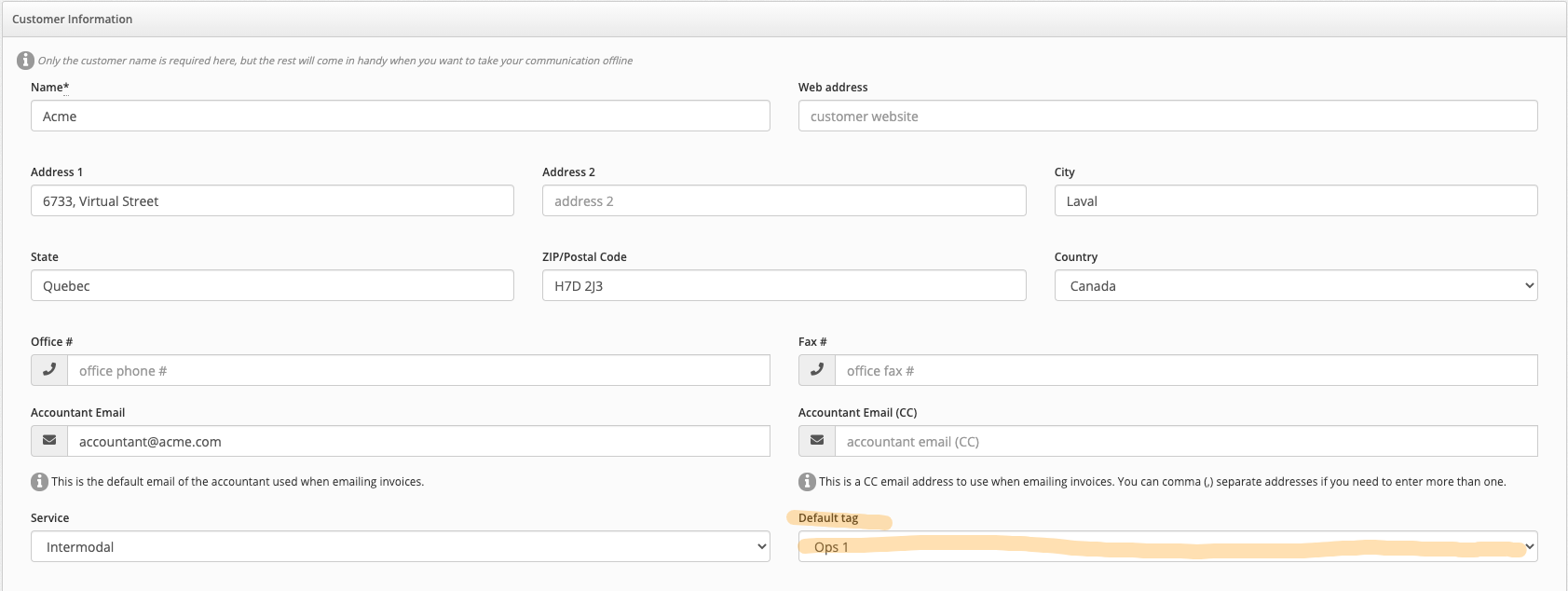
Adding a default tag to a customer will automatically add this tag to any new order created for this customer. This can be accomplished with the following steps:
- From the left menu, select Customers
- Find your Customer by name
- Click on the Edit customer button
- On the Customer Edit form, select a Tag from the Default Tag dropdown
- Click on Save Changes
Changing or removing a tag
The tag can be changed or removed from the Order at any time using the following steps
- From the Orders listing, click on the Action Button
- Select Quick Edit
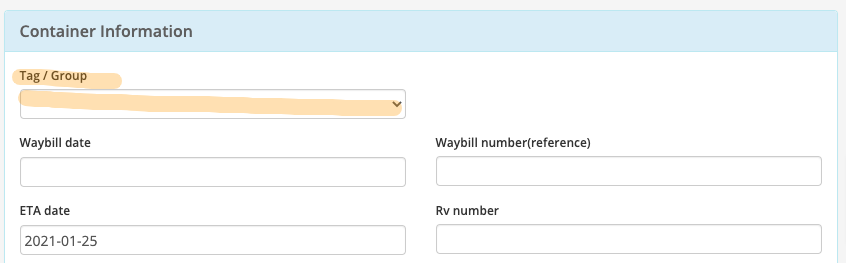
- Under the Container Information section, change or remove the Tag / Group value
Filtering orders by Tag name
- Filtering by Tag is available on the Orders and Dispatch pages
- On the Dispatch page, simply click on the Tag name to only see the associated orders
- The filter includes all the available Tags as well as untagged orders filter
