Invoices
Create invoices from completed orders, track payments, and export for accounting.
Overview
The Invoices page is where you manage the billing cycle — from creating invoices for completed orders to tracking payments and exporting data for your accounting system.
- Create invoices from completed orders
- Email invoices directly to customers
- Track payment status — New, Invoiced, Paid, Partially Paid
- Narrow by invoice date — pick a range or use a preset
- Track what you are owed — AR aging by days past due
- Export exactly what you filtered to Excel or CSV
Quick Start
- Go to Invoices from the left menu.
- Click Create Invoice (or create from a completed order).
- Review the invoice details and charges.
- Click Send to email it to the customer.
Access & Permissions
| Role | Access |
|---|---|
| Admin / Manager | Full access — create, edit, send, delete |
| Accountant | Full access |
| Dispatch | View only |
How to get there:
- From the left menu, click Invoices
Invoice Filters
The filter bar sits at the top of the Invoices page. Every control narrows the same list, and they combine — pick a status, add a date range, add an aging band, and you get the invoices matching all three.
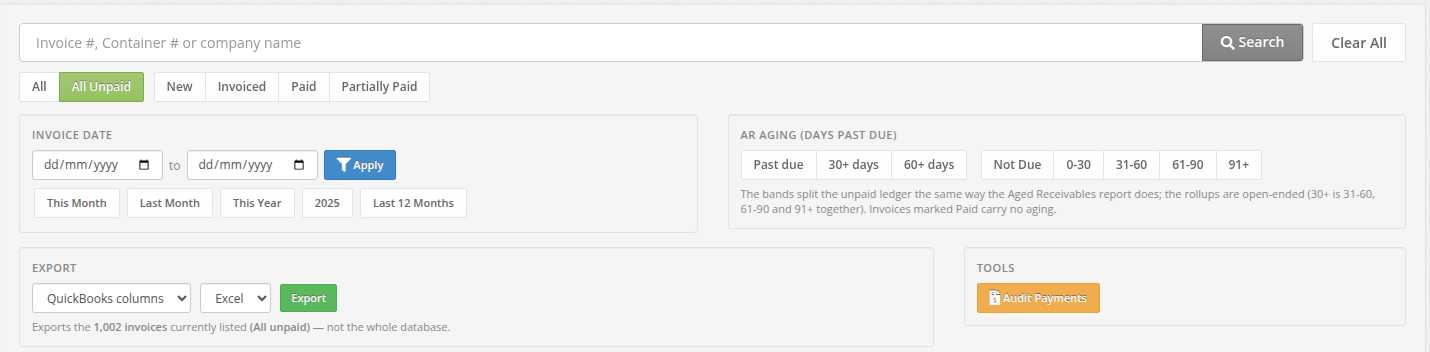
Your filters follow you into the export
The Export panel tells you exactly what you are about to download — for example "Exports the 1,002 invoices currently listed (All unpaid)". The file always matches the list on screen.
Search
Search by invoice number, container number, or company name. Searching narrows whatever you are already looking at instead of resetting it.
Each active filter shows as a small removable chip inside the search box — click the ✕ on a chip to drop that one filter and keep the rest. Clear All resets the page to its default view.
Payment Status
| Filter | Shows |
|---|---|
| All | All invoices |
| All Unpaid | Everything that hasn't been fully paid |
| New | Invoices created but not yet sent |
| Invoiced | Sent to the customer, awaiting payment |
| Paid | Fully paid invoices |
| Partially Paid | Invoices with partial payments recorded |
Invoice Date
Filter by the date on the invoice. Type a from and to date and click Apply, or use a preset:
This Month · Last Month · This Year · last year (shown as the year itself, e.g. 2025) · Last 12 Months
Click Clear dates to drop the range while keeping your other filters.
AR Aging (Days Past Due)
Aging answers "how late is this?" It is measured from the due date, and it replaces the old separate Past Due tabs so that status and age can no longer contradict each other.
There are two ways to ask, side by side:
| Type | Options | Meaning |
|---|---|---|
| Rollups — open-ended | Past due · 30+ days · 60+ days | "This old and worse." 30+ days covers 31-60, 61-90 and 91+ together |
| Bands — exact | Not Due · 0-30 · 31-60 · 61-90 · 91+ | Splits the unpaid ledger into exact buckets, the same way the Aged Receivables report does |
Two details worth knowing
- Past due means at least one day late. An invoice falling due today sits in the 0-30 band without being past due.
- Invoices marked Paid carry no aging, so no aging filter will return them.
Invoice List Columns
The list shows eight columns. Most pair a primary value with a smaller related value underneath it, so the table stays readable without losing detail.
| Column | Shows | Underneath |
|---|---|---|
| Invoice | Invoice number | Invoice date |
| Company | Customer company name | Number of orders on the invoice |
| Due date | Payment due date from the invoice terms | Days past due, as a coloured badge |
| Total | Invoice total including taxes | — |
| Balance | Amount still outstanding | Total paid so far |
| Last payment | Date of the most recent payment | Number of checks recorded |
| Status | New / Invoiced / Paid / Partially Paid | Whether it was sent, and when |
| Actions | Email and row actions | — |
The footer row shows the total count and sum of all invoices matching the current filter.
Sending Invoices
To email an invoice to a customer:
- Find the invoice in the list.
- Click the Email action on the invoice row.
- The invoice is sent to the customer's Accountant Email (configured on the customer profile).
- The invoice status automatically changes to Invoiced.
Tip
If you send an invoice multiple times, subsequent emails are marked REVISED to indicate an updated version.
Recording Payments
Pay in Full
Click the Pay in Full action on an invoice to record full payment. The Paid Date is set automatically.
Partial Payments
Record partial payments against an invoice. The status changes to Partially Paid and the Total Paid column updates.
Bulk Payment Updates
Use Audit Payments to review and update payments across multiple invoices at once.
Exporting Invoices
The Export panel is part of the filter bar. It exports the invoices currently listed — whatever your status, date range, search and aging filters have narrowed the page down to.
The line underneath the button always states what you are about to get, for example "Exports the 1,002 invoices currently listed (All unpaid) — not the whole database."
Choosing what you get
| Setting | Options | Description |
|---|---|---|
| Layout | QuickBooks columns | The accounting-import layout, for bringing invoices into QuickBooks |
| AR aging detail | Receivables layout with the aging and balance detail, for collections and month-end | |
| Format | Excel (.xlsx) | Native Excel format |
| CSV (.csv) | Comma-separated values for spreadsheets |
To export: set your filters so the list shows what you want, choose a Layout and Format, then click Export.
Very large exports
An export builds the whole file at once, so it is capped at 20,000 invoices. If your filter matches more than that, narrow it — an invoice date range such as This Year or Last 12 Months is usually enough — and export in batches.
Invoice Discrepancies
The discrepancies feature helps identify payment mismatches — invoices where the amount paid doesn't match the invoice total. This is useful for reconciliation and month-end close.
FAQ / Troubleshooting
Customer didn't receive the invoice email
Solution
Check the customer's Accountant Email field in their company profile (Customers > Edit). Also verify your email settings in Settings — the Invoice Mailer must be configured correctly. You can use the Test Email Configuration feature in Settings to verify.
Can't create an invoice — no orders available
Solution
Only Completed orders that are not yet invoiced can be added to an invoice. Check the order status on the Orders page. If the order is still Dispatched, it needs to be completed first.
Invoice shows wrong charges
Solution
Invoice charges come from the order. Edit the order to adjust the base rate, terminal fees, or fuel surcharge, then regenerate the invoice. Automatic charges (terminal fees, fuel surcharge) are recalculated based on the order's terminal and delivery date.
Screenshots Needed
Screenshots to capture
- Invoices list rows — a few invoice rows showing the paired columns, aging badges, and the total footer
- Invoice detail — showing the invoice with line items, charges, and payment section
- Bulk Audit Payments — the audit payments view (if visually distinct)